A few years ago, I was refactoring Memed’s design system right as a branding agency delivered our refreshed palette. The timing seemed perfect: new colors for a new system. What could go wrong?
Turns out, the brand colors they gave us were great for the logo and marketing materials—that’s what they were designed for. But a prescription platform UI needs a lot more than four or five brand colors. We needed tints for backgrounds, shades for depth, midtones for interactive states—probably ten steps per color. The agency’s palette didn’t come with those variations, because why would it? Brand guidelines focus on the core identity, not every UI nuance.
So we had to “unfold” those brand colors into full ramps ourselves. I started with Google Sheets and scotch taped together some Apps Script to convert between color models and plot the hue, saturation, and brightness channels for our color ramps.
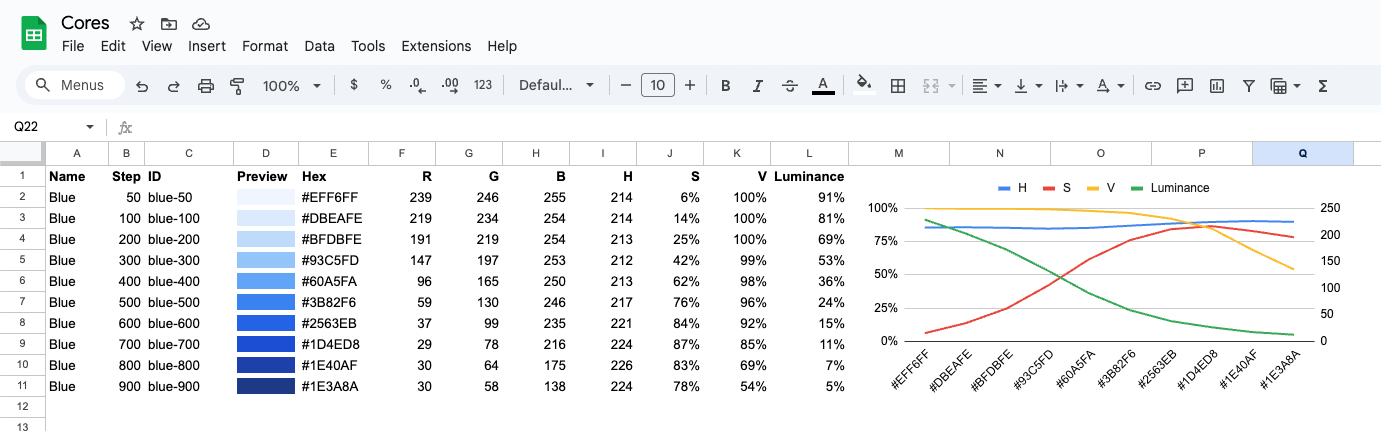
It actually worked, but now that coding LLMs are capable enough to help build real tools, I decided to turn those hacks into something I’d actually want to use. That’s how Color Guru came to be: a way to design color ramps by shaping curves instead of tweaking individual hex codes.
Thinking in curves
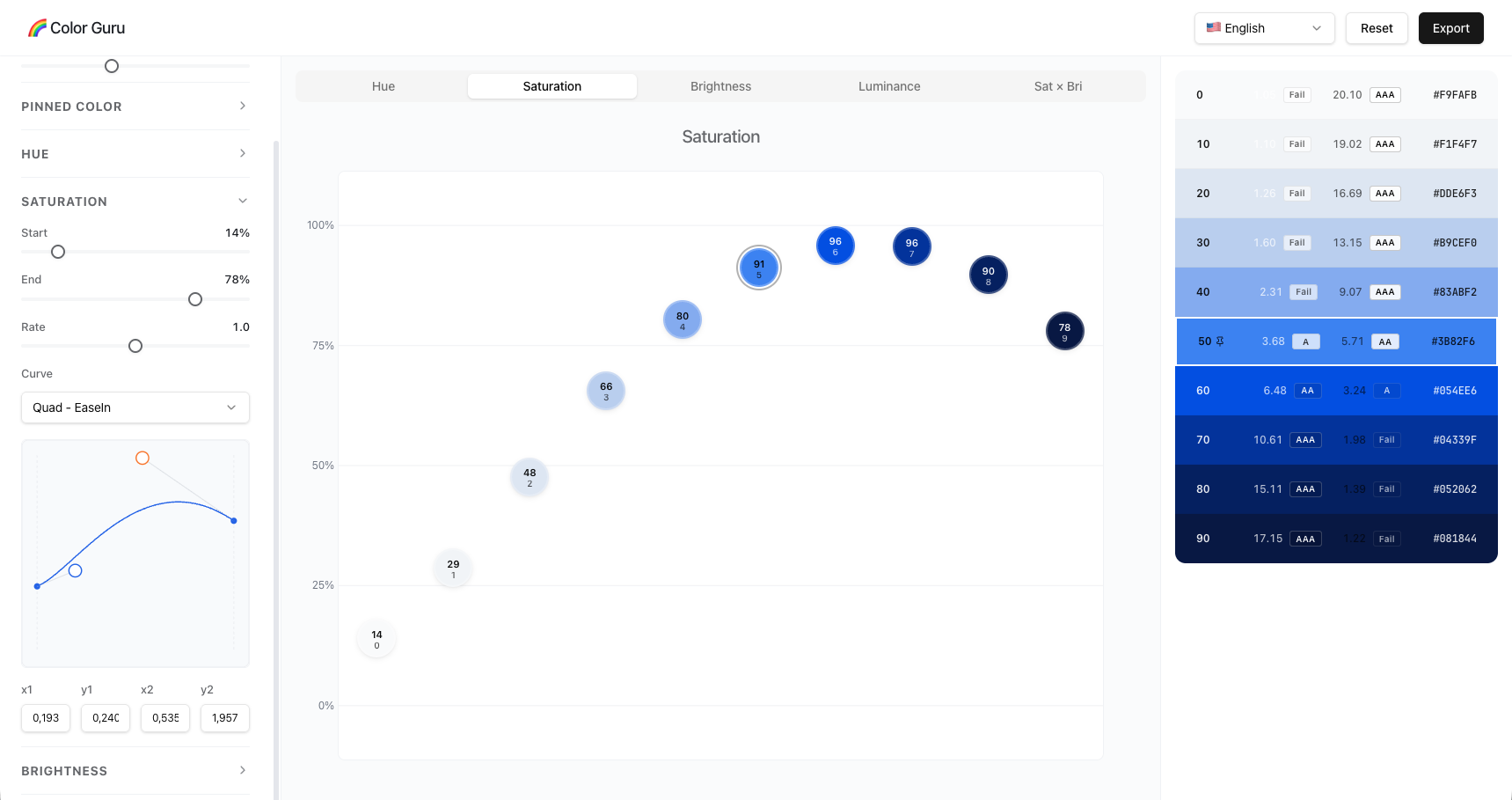
In UI, you usually want more steps at the extremes than in the middle. Extra light shades give you subtle backgrounds. Extra dark shades give you depth. But the middle range should have stronger contrast for text and buttons. That means you want a luminance curve that’s steeper in the middle and flatter at the ends.
Bézier curves turned out to be exactly what I needed. They allow you describe this shape once and then generate any number of steps from it. Plus, we already use Bézier curves all the time for animation easing, so they’re familiar territory.
Building on ColorBox
I’m definitely not the first person to think about color ramps this way. Kevyn Arnott’s ColorBox v1 was a great curve-driven color ramp tool. I used it for a while. But as I kept working on design systems, I kept wanting three things it didn’t have:
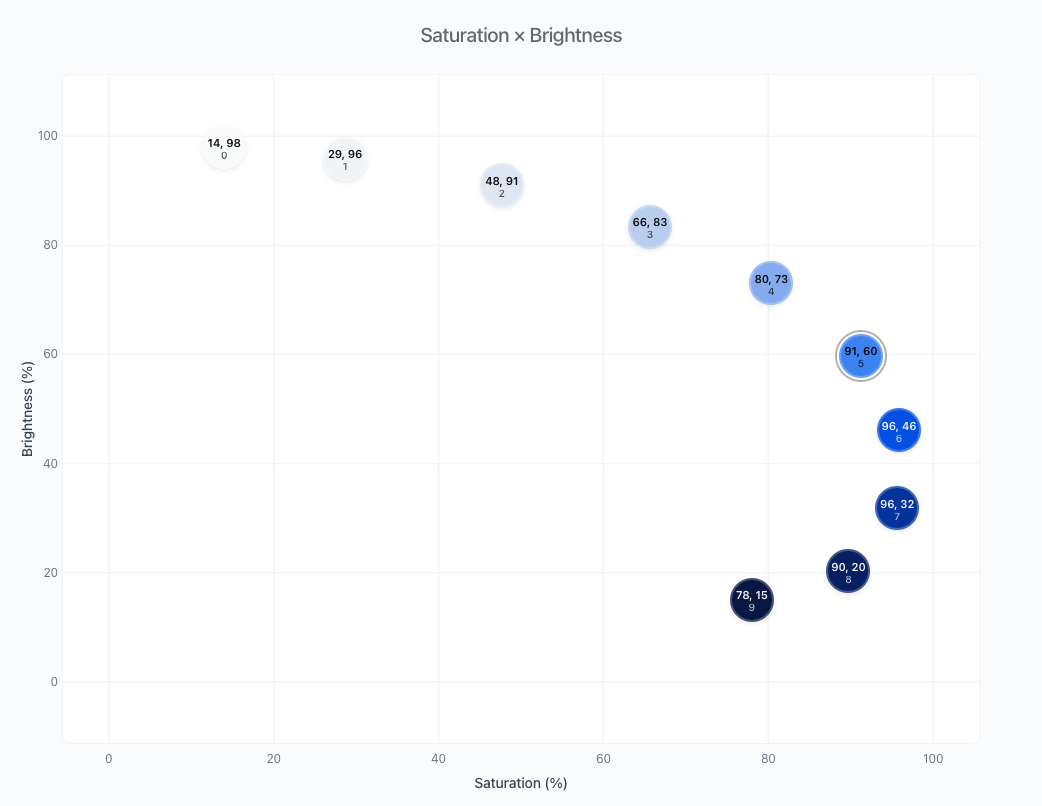
First, I wanted to see how saturation and brightness change together, not just as separate line graphs. When you plot them against each other, you can spot problems you’d completely miss otherwise—like when your bright colors suddenly lose all their saturation and turn chalky, or when your dark colors get too intense and look neon. This Sat×Bri plot is the diagnostic view I wish I’d had back at Memed.
Second, I wanted precise control over the curve shapes. ColorBox lets you see the curves, which is huge. But I wanted to be able to nudge just the light end, or stretch out the middle, or pack more contrast into the darks—all independently. Cubic Bézier curves with individual control points let you do exactly that.
Third, I needed a way to pin brand colors. Like when we did the Memed brand refresh, the agency gave us specific hex codes, and I needed to build a whole systematic palette around them. Trying to reverse-engineer curve settings to land on an exact hex code was impossible. Now you can just type the hex code or click a color in the preview, and Color Guru positions it based on luminance and you can shape the rest of the ramp around it.
How I actually use it
When I’m building a new palette—whether it’s a primary color, neutrals, or status colors—I usually follow this process:
-
Pick how many steps I need. There’s no right answer here, but ten to twelve works well for most design systems.
-
Pin any brand colors first (if needed). If I have a specific brand color from guidelines, I pin it. Color Guru slots it in the ramp based on luminance, then I shape the curves around it. The pinned color stays put while you adjust the rest of the ramp.
-
Focus on luminance first. I aim for something around 4-6% luminance at the darkest shade and 95% at the lightest. The key is making sure the middle has enough breathing room for strong contrast and the edges have at least 3 tones that vary slightly, for borders, backgrounds, hover states, etc.
-
Shape the saturation curve. Desaturate the lights so they don’t look chalky. Pump up the darks so they don’t look muddy. Usually I end up with a convex curve that peaks around 70% of the way through the ramp, then eases off for the very darkest shades.
-
Add a tiny bit of hue drift (optional). Remember that some colors have more luminance than others. You can use this to your advantage. For example, a generally blue ramp can have more cyan-leaning light tones and purple-leaning dark tones. Erik D. Kennedy covers this well in his Color in UI Design: A (Practical) Framework.
-
Check the Sat×Bri plot. If I see a smooth arc, I’m good. If there’s a kink or the line doubles back on itself, something’s wrong and I do some fine-tuning in saturation and brightness. Jeeyoung Jung goes in-depth on this, in his article Designing Systematic Colors.
-
Verify the contrast. The tool shows contrast ratios in real time, so I can see which combinations hit 4.5:1 for body text and 3:1 for large text and UI elements. This way accessibility becomes easily incorporated into the design process.
Once I’m happy with it, I can export to Figma and test it on some components. Once that’s OK I can also export as CSS variables, JSON, or plain text.
Try it out
The tool is live at colorguru.design, and the source is on GitHub. If you find it useful and want to contribute, I’d be happy to see it.
Note: I used AI to help structure and refine this post.
Contents: